


No Expensive Software Needed: Create a Full Music Video from Start to Finish
Do you want to make a music video (MV) using anime-style or original characters, but feel unsure whether you can master complicated software—or worry it might take too much time?
In this article, we’ll show you how to create your own MV with MOHO PRO, a one-time purchase animation tool that’s easy to use and doesn’t require costly subscriptions. Even beginners can bring their ideas to life in a short time.
We’ll also cover tips for improving your workflow, the differences from AI-generated videos, and how to make the most of your original artwork—all organized in a practical Q&A format.
By the end, even complete beginners in video production will discover the key steps to creating their very own music video.
Basic Workflow for Creating an MV
Collect the illustrations, audio tracks, and text (such as lyrics) you’ll use.
Whether you use your own creations, free resources, or AI-generated material, always check the license.
Organize your assets into separate layers.
Split character parts (arms, legs, eyes, etc.) for easier bone rigging.
Use bones to animate your characters.
Add text animation or simple effects.
Sync movements and transitions with the rhythm of the music.
Check character motion, timing, and effects.
Make fine adjustments as needed.
Render to MP4 (or another video format).
Use settings that support full HD and smooth playback on smartphones, even for longer videos.
Even if you don’t upload to YouTube, you can embed the video on your blog.
Be sure to include copyright notes and clarify the source of your materials.
Concept of the Sample MV Featured in This Article: “Run, Sailor Girl, Run!”
Theme & Concept
- A lively, comical, and cute action-style music video
- Showcasing MOHO PRO’s basic functions (image layers, text layers, and just a touch of bones)
- A humorous illustration of a sailor-uniformed girl running with a machine gun, emphasizing motion and rhythm
- Designed as a sample (approx. 1 minute 20 seconds) to solve common frustrations: “AI-generated videos are too short and unsatisfying” or “Complicated software feels impossible to master”
Title & Lyrics
- Japanese Title: ぷりぷり走れ!セーラーガール
- English Title: Run, Sailor Girl, Run!
- The lyrics are playful and comical, matching the video’s rhythm. By animating both the character and the text, users can experience the fun of music video creation in a short time with MOHO PRO.
Run, Sailor Girl, Run! [Anime Music Video]
ぷりぷり走れ セーラー少女
ピョンピョンジャンプで 風を切るよ
ドキドキワクワク 今日も大冒険
BOOOOOM! 響け街に
マシンガン片手に ヒャッハー!
カラフルな爆風 ぴかぴか光る
こわくないよ だって笑ってる
ニコニコ撃つのさ
BANG BANG☆セーラー爆走!
ぴょんぴょん飛んで 世界をかける
BANG BANG☆ドキドキ大爆発!
ハートも一緒に ドッカーン!
ぷかぷか煙の中 ふわり舞う
あら不思議 可愛い魔法?
ぎゅーっとぎゅーっと 撃ってみよう
BOOOOOM! 笑顔でフィニッシュ
Wiggle and run, Sailor Girl!
Hopping and jumping, cutting through the wind
With excitement and thrill, today’s another big adventure
BOOOOOM! Echo through the city
One hand on the machine gun—Yah-ha!
Colorful blasts sparkle and shine
No fear, because she’s smiling
Shooting with a grin
BANG BANG☆ Sailor on the run!
Hopping and flying across the world
BANG BANG☆ Heart-pounding explosion!
Even the heart goes BOOM!
Through the drifting smoke, she dances lightly
Oh, what a wonder—is it a cute magic?
Let’s fire away, tighter and tighter!
BOOOOOM! With a smiling finish!
Just This Simple: Create Your Own MV!
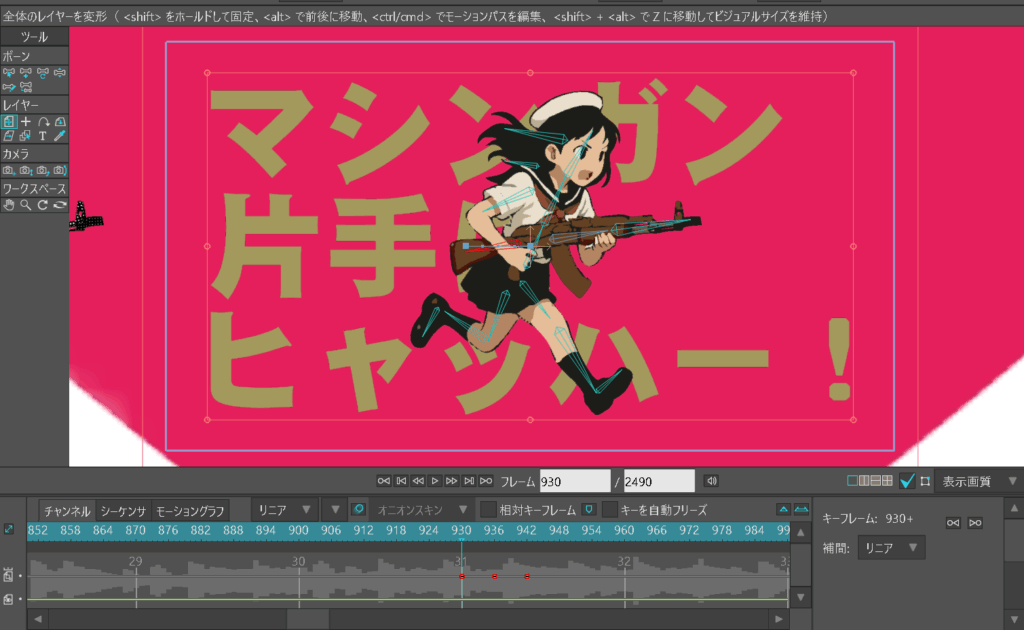
An overview of the entire workflow – Here’s how this MV was made, step by step.
The basic flow is:
Prepare a single illustration → Add text → Adjust the timeline → Export.
(The concept was explained earlier in the article.)
The Tools and Assets I Used

To bring everything together, I combined different tools for each type of asset:
- GIMP – Used when exporting images as PNG and applying retro textures or newspaper-style monochrome effects. Filters and edits are quick and flexible, making it easy to adjust only the parts where I wanted to change the mood.
👉 [Official GIMP Website] - CorelDraw – My go-to for creating vector graphics and text. Because vector lines stay sharp and don’t lose quality when scaled, it’s ideal for character art and text layers. In this MV, I used flat fills to give it an anime-like look, but CorelDraw can also handle gradients or 3D-like effects.
👉 [CorelDraw Product Page / Official Site] - MOHO PRO – Finally, I imported all the assets here and animated them. Both vector and raster layers can be managed, making it easy to bring illustrations to life.
MOHO PRO: Key Points for Creating MVs with Fewer Layers and Bones
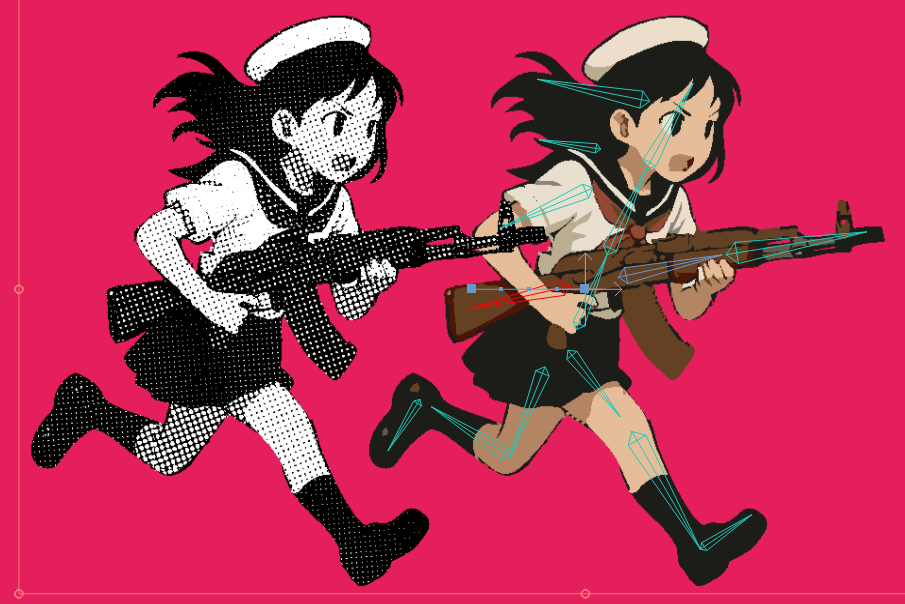
The image above shows the setup of bones in MOHO PRO (the light blue bones overlapping the illustration on the right).
Normally, splitting artwork into multiple image layers (or vector layers) helps avoid unintended distortion when moving bones. However, for an MV like this one, where the illustration doesn’t need extreme motion, you can simply attach bones to a single illustration layer and it works just fine.
If you want more detailed movement—such as separate control of body parts, hair, or clothing—you can simply add more bones. Also, adjusting the stacking order of parts is as easy as rearranging the layer order.
Use the Software You’re Comfortable With! Try Both 2D and 3D—Just Start Moving Your Hands
Chances are, you’ve already used some kind of graphic software before—whether it’s Photoshop, Clip Studio, CorelDraw, Inkscape, or Aseprite. Stick with what you’re familiar with.
If you work with 3D software like Maya or Blender, you can also create character or background models with relative ease. Even if you’re new to these tools, starting with simple shapes or editing a single illustration is enough. (Exporting as SVG, PNG, or JPEG makes your assets easy to import into MOHO.)
🔑 The key point is: “Don’t aim for perfection first—just start creating.” Don’t get stuck worrying about the software or its functions. Choose what feels easiest to use, and you’ll already be on your way to making your first MV.
Syncing Motion to Rhythm is Easy with Timeline + Audio Waveform
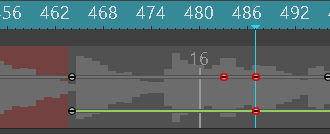
On the timeline, you can see the waveform of your audio track, making it simple to align character movements with the beat.
The example above shows adjusting the timing of heart-shaped graphics in the background. Because MOHO displays the volume changes of the imported audio, you can easily decide when to move, show, or hide elements by checking the waveform frame by frame.

MOHO PRO for MV Creation: Frequently Asked Questions (Q&A)
- Can beginners really make an MV?
-
Yes! MOHO PRO is very beginner-friendly. Bone rigging and text animations are simple and intuitive to use.
- Do I need expensive subscription software?
-
Not at all. MOHO PRO is a one-time purchase, so you can work without worrying about ongoing costs.
- AI-generated videos I tried were too short. Can I make longer videos?
-
Yes. Unlike AI tools with strict time limits, MOHO PRO lets you create full-length MVs—even 2 minutes or longer.
- Can I use existing illustrations or audio files?
-
Absolutely. You can import vector art, raster images, or even 3D assets.
- How long does it take to make one MV?
-
If you already have your assets ready, even beginners can finish a video in one to a few days.
- Can I customize text and effects freely?
-
Yes. It’s easy to sync text and graphics to the beat of your music with custom effects.
- What about copyright issues?
-
If you use your own artwork and audio, there’s no problem. For external assets, just make sure to check the license.
- Can I monetize my MV?
-
Depending on where you publish, yes. Many creators share and monetize on YouTube or social media.
- Can I use Vocaloid or original songs?
-
Yes. You can animate your illustrations to match any kind of audio, making lyric videos or full MVs.
- Can I animate drawings made by kids or other people?
-
Yes! Simply import the illustration and apply bones or simple animations.
- Is it okay to mix AI-generated images with my own art?
-
Yes, but keep in mind differences in resolution or aspect ratio. For example, resize AI images (e.g. 1000×1000 px) to match video resolution (e.g. 1920×1080 px for YouTube).
- I’m not good with computers. Can I still do this?
-
Yes. Once you learn the basics, you’ll be able to make videos step by step. Just follow the guide and you’ll be fine.
👉 [MOHO Basic Interface & How to Use] - Can I really make an MV with just one illustration?
-
Definitely. Check out the sample video in this article—created from a single illustration.
- How large will the file size be for a 2-minute MV?
-
At 1080p (1920×1080), expect around 150 MB. If you need smaller files, you can adjust resolution and quality in MOHO’s export settings.
