



You can change the CorelDRAW UI (window theme) in just two simple steps.
You can change the CorelDRAW UI (window) color
- You can set it independently from your Mac / Windows OS display settings.
- You can switch it anytime depending on your work environment or situation.

- CorelDRAW allows you to set its own window color (UI theme) separately from your system settings on Windows or Mac.
- By choosing a light or dark theme depending on your task or environment, you can improve visibility and reduce eye strain.
- Especially during long work sessions or when sharing your screen online or on social media, switching the theme can make your content easier to see and understand.
Select the CorelDRAW UI (window) color from the list
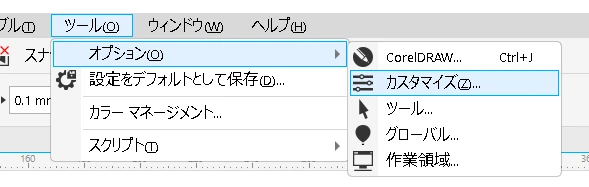
1. To change the window color, open “Tools” → “Options”
then go to “Customization” and find the appearance settings.

2. In the color section, choose a theme from the list such as
“Light”, “Medium”, “Dark”, or “Black”.
The UI color will change instantly.
 ライカちゃん
You can change the CorelDRAW UI color from “Tools → Options → Customization → Appearance → Color”.
Choose from Light, Medium, Dark, or Black themes to adjust visibility for your work or presentations.