


Corel BARCODE WIZARD
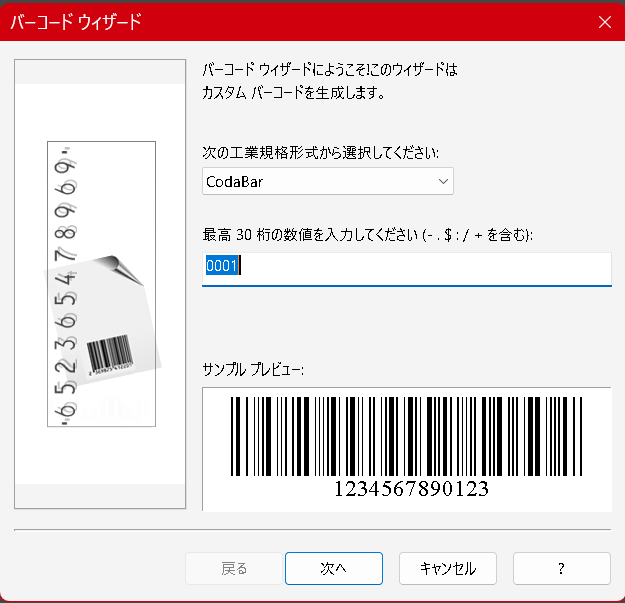
Corel BARCODE WIZARD, included with CorelDRAW, is a powerful tool that allows you to easily create various types of barcodes (such as JAN, ISBN, and UPC) required for printing, publishing, and distribution tasks.
In this article, we provide a clear overview of the barcode formats supported by Corel BARCODE WIZARD, including their characteristics, practical applications, and country-specific classifications. We’ll also walk you through the step-by-step process for entering barcode data, adjusting print settings, and verifying barcode output.
This guide is especially useful for professionals involved in DTP (desktop publishing), label design, product management, or anyone looking to generate accurate barcodes within CorelDRAW.
Overview of Barcode Formats Supported by Corel Barcode Wizard
Corel Barcode Wizard, included with CorelDRAW, allows you to create 18 types of industry-standard barcodes.
By understanding the characteristics and intended uses of each barcode type, you can apply them effectively in various fields such as product management, publishing, logistics, and healthcare.

Books, Publishing, and Identification Use
| Barcode Format | Features & Use Cases |
|---|---|
| ISBN | International Standard Book Number. A 13-digit code based on EAN-13 that starts with “978”. Essential for uniquely identifying books. |
| ISSN | International Standard Serial Number for magazines, newspapers, and other periodicals. Uses EAN-13 format starting with “977” and includes a 2-digit add-on code (e.g., 01 = January). |
| JAN-8 / JAN-13 | Japanese Article Number codes used in retail in Japan. JAN-13 is equivalent to EAN-13, and JAN-8 to EAN-8. Widely used for books, consumer goods, and general merchandise. |
| EAN-8 / EAN-13 | International product codes primarily used in Europe. EAN-13 uses 13 digits; EAN-8 uses 8 digits for smaller packages. Both are standard in publishing and distribution industries. |
🛍️ Retail, Logistics, and Inventory Management
| Barcode Format | Features & Use Cases |
|---|---|
| UPC(A) / UPC(E) | Used in retail across the U.S. and Canada. UPC-A is the standard 12-digit format; UPC-E is a compressed 6-digit version for small packages. |
| Code 128 | High-density, versatile barcode supporting full ASCII (letters, numbers, symbols, control codes). Ideal for transport, logistics, and warehouse management. Compatible with EAN-128. |
| Code 39 | Reliable format used in military, manufacturing, and healthcare sectors. Supports 43 characters (alphanumeric and special symbols). |
| Code 25 | Numeric-only barcode used for inventory tracking. Common in airline tickets, warehouse logistics, and baggage handling. |
| ITF / ITF-14 | Numeric-only barcode widely used in shipping and warehousing. ITF-14 supports 14-digit codes for outer packaging labels. |
📦 Specialized Industrial and Professional Use
| Barcode Format | Features & Use Cases |
|---|---|
| Codabar | Used in libraries, blood banks, and air parcel systems. Includes start/stop characters (A to D). |
| MSI/Plessey | Numeric-only barcode with variable length, commonly used in libraries and inventory systems. |
| Pharmacode | Designed for pharmaceutical packaging. Allows multi-color bar printing and is optimized to prevent printing errors. |
| POSTNET | Used by the United States Postal Service (USPS) for ZIP code encoding. Encodes data based on bar height. |
| FIM (A–D) | Facing Identification Mark used in U.S. postal automation. Applied to reply mail, business reply envelopes, and government mail. |
🧩 Trivia: The Relationship Between ISBN and EAN-13
An ISBN barcode is actually a type of EAN-13 code. The barcode printed on the back of a book begins with the prefix “978”, which identifies it as a book product within the EAN-13 system.
Note that the ISBN check digit is not included in the barcode itself.
This allows books to be scanned and processed just like any other retail item using standard POS systems.
🔧 Notes on Using Corel Barcode Wizard
- When creating a barcode, entering 7 or 12 digits (depending on the barcode type) will automatically generate the check digit.
- You can optionally add a 2-digit or 5-digit add-on code, often used for periodicals and supplements.
- In Code 128, you can include ASCII characters and functional control codes such as FNC1–FNC4.
🔧 How to Use Corel Barcode Wizard
To create a barcode using Corel Barcode Wizard, launch it from one of the following menu paths
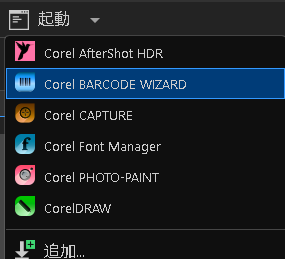
- From the menu: Launch → Corel BARCODE WIZARD
- Or: Object → Insert → Corel BARCODE WIZARD
🧭 Steps to Create a Barcode in Corel Barcode Wizard
- Select Barcode Type
Choose the desired barcode standard (e.g., ISBN, JAN) from the dropdown list. - Enter Barcode Numbers
Accurately enter the required number of digits into the text input field. - Proceed to Next Step
If the input is correct, click the “Next” button to continue.
※ The input screen will automatically change depending on the barcode type.
Examples of barcode input screens:
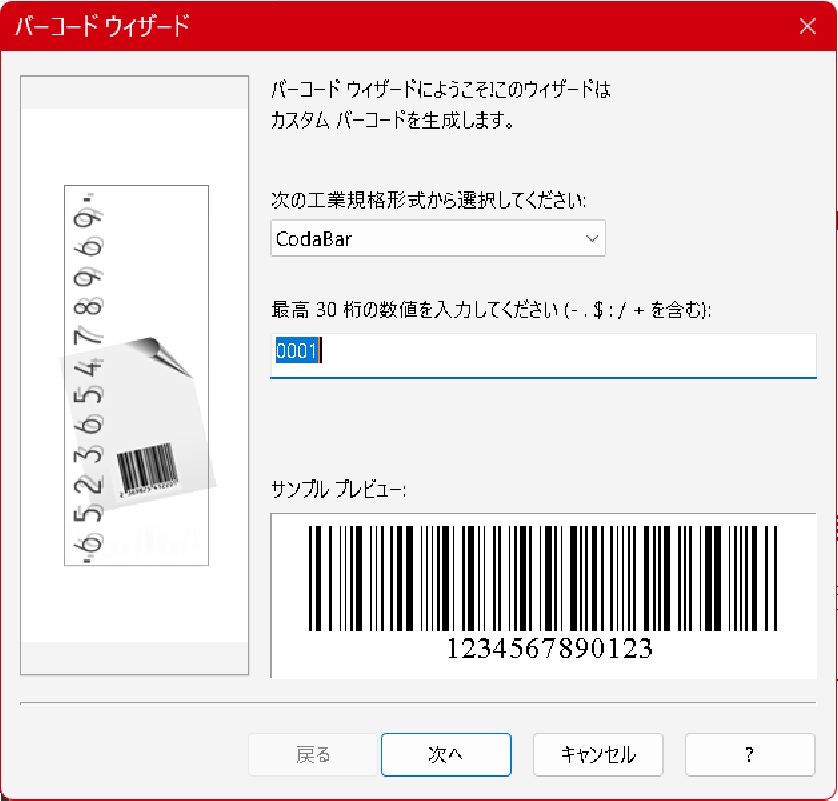
Input screen for Codabar
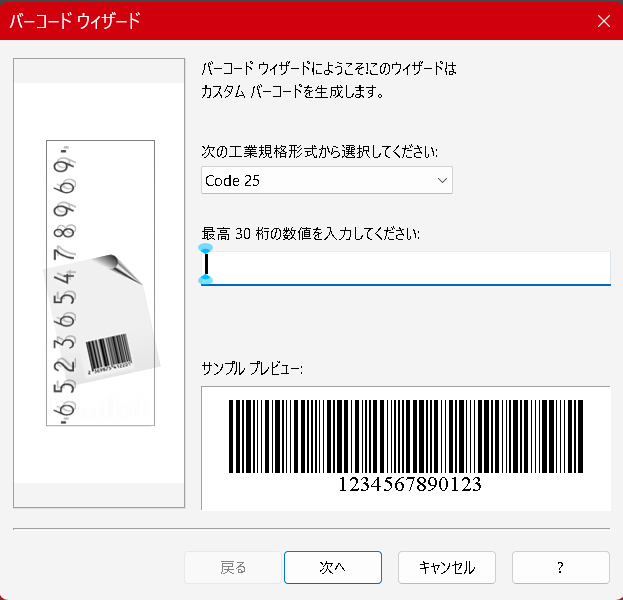
Input screen for Code 25
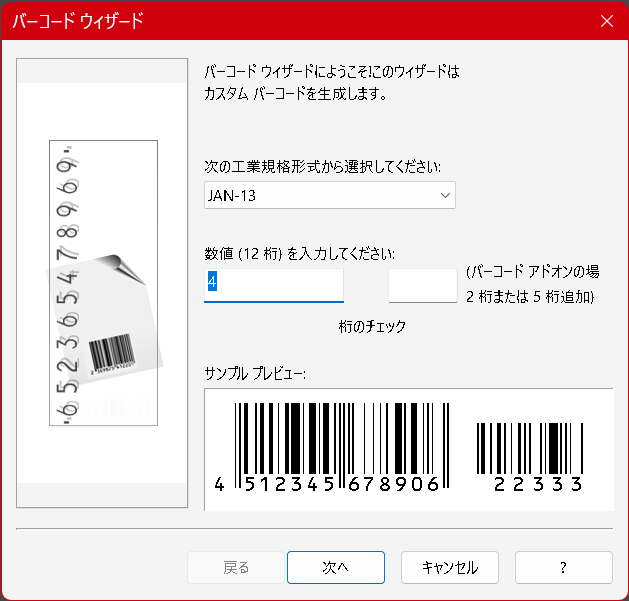
Input screen for JAN-13
🔧 Setting Barcode Standards and Input Values
1. Select the Barcode Standard
From the dropdown list, choose the industrial barcode format you want to create (e.g., ISBN, JAN).
2. Enter Barcode Numbers
Accurately input the required number of digits into the text field, according to the selected format.
3. Proceed to the Next Step
If the input is correct, click the “Next” button to move forward.
🖨️ Adjusting Barcode Print Settings
The appearance of the barcode can directly affect its scannability and accuracy.
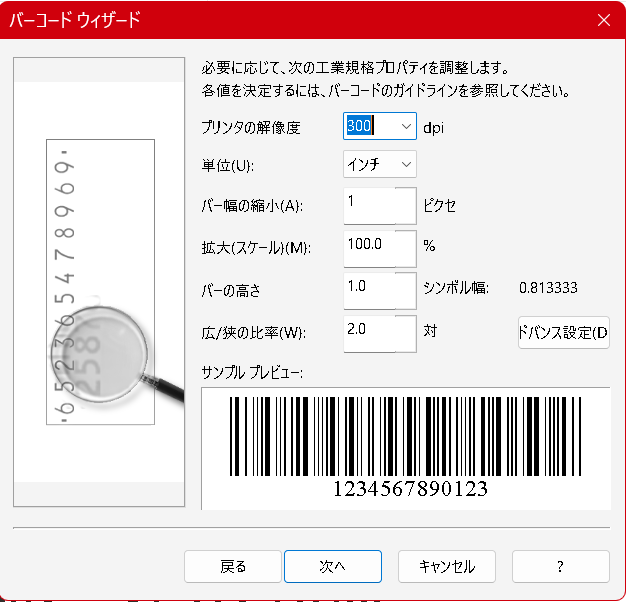
In Corel BARCODE WIZARD, you can configure the following print settings:
- Printer Resolution
- Measurement Units
- Bar Width Reduction
- Scale (Enlargement/Reduction)
- Bar Height
- Wide-to-Narrow Ratio
A live preview of the barcode, based on your input, will be displayed at the bottom of the screen for confirmation.
✅ Verifying Barcodes in CorelDRAW
To ensure the barcode is readable and correctly encoded, follow these steps to run a verification:
- Go to Object → Insert → Barcode Verification from the top menu.
- Drag to select the area around the barcode you want to test.
- The result will be shown on-screen, confirming whether the barcode has been recognized correctly.
For some barcode types, you can further customize font styles, symbols, and other details.
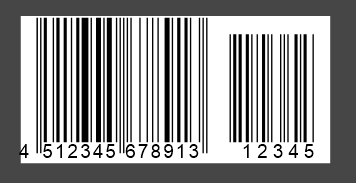
When you’re ready, click Finish, and the barcode will be inserted as a vector object into your CorelDRAW canvas.
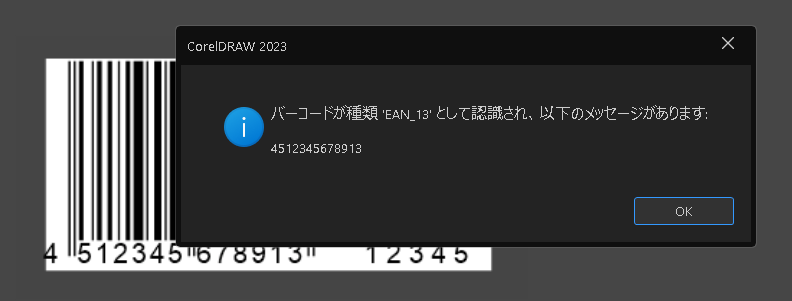
📌 In our test using a freshly created barcode sample, the code was successfully recognized and verified as valid.


Comments
List of comments (1)
[…] List of Barcode Types and Uses|Clear Explanation of Standards Used in Printing, Publishing, and Lo… Learn how to generate and customize 18 types of industrial barcode formats using Corel Barcode […]